Screen mirroring
LensLink Screen receives an iOS screen broadcast — the whole screen with its audio, from any app — encoded in HEVC.
Setting it up#
-
Add the source in OBS
Sources → + → LensLink Screen, then point it at the phone exactly as you would a camera source.
-
Start the broadcast on the phone
Mirror Screen, choose LensLink Screen, tap Start Broadcast. iOS requires its own picker here.
-
Leave the app
Unlike the camera, a broadcast keeps running across apps — that's the point of it.
Each source type accepts only its own stream. Mismatch one and the Status field says which source to switch to, rather than showing nothing.
Audio#
- App and system audio comes through — game sound, browser video, app effects.
- DRM-protected audio is muted by iOS during any broadcast (Apple Music, Spotify, Netflix). That applies to every broadcast extension on the platform; LensLink can't opt out.
- Your microphone is not sent. Mic yourself in OBS. (The camera source can carry the phone's mic; this one deliberately doesn't.)
To hear it rather than only record it, set the source's Audio Monitoring to Monitor and Output in OBS's Advanced Audio Properties.
Locking the source size#
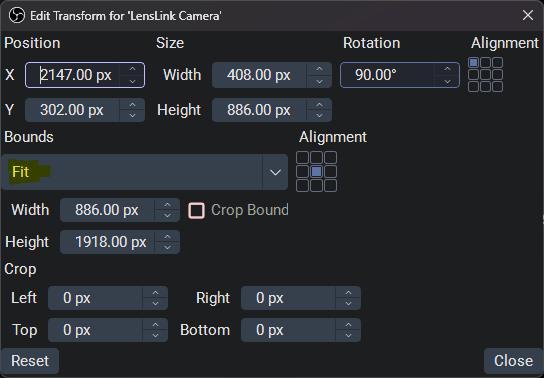
A mirror reports whatever resolution iOS is broadcasting, and that changes between apps and orientations — so the source can resize mid-stream and disturb your layout. Pin it to a fixed box:
- Right-click the source → Transform → Edit Transform…
- Set Bounding Box Type to Scale to inner bounds ("Fit").
- Give the bounding box the size you want the mirror to occupy.
Frame rate#
The source's Frame rate property picks 60 fps (the default) or 30 fps. At 30 the phone encodes every other frame at a lower bitrate, which roughly halves its encoding work and the Wi-Fi bandwidth. That suits slides, documents and apps, and helps on a weak Wi-Fi link; keep 60 for games and video. It applies right away, even mid-broadcast. iOS only sends a new frame when something on screen changes, so a still screen costs little either way.
What the Screen source doesn't have#
No camera controls and no browser panel: there's nothing to zoom or focus. Its properties are the connection, decoding, frame rate and diagnostics.
Sharing one phone between two sources#
A phone feeds one source at a time. Enable Disconnect when this source isn't shown anywhere on both and a hidden source releases the phone, so switching scenes hands the device over.
When the broadcast will not connect#
The broadcast extension is a separate process, so its failures are hard to see. Two things to check:
- On a sideloaded build, re-signing can strip or break the extension — a known consequence of rewriting bundle IDs. The Home screen's Screen mirror section warns when the extension is missing from the installed app. TestFlight and App Store builds are unaffected.
- If the broadcast starts on the phone but OBS shows nothing, the connection is at fault: see Reading the Status field.